

Language Learning Platforms
Preply Help Center: Complete Support Guide
Everything you need to know about Preply's help resources, policies, and contact options.
Getting Started with Preply Support
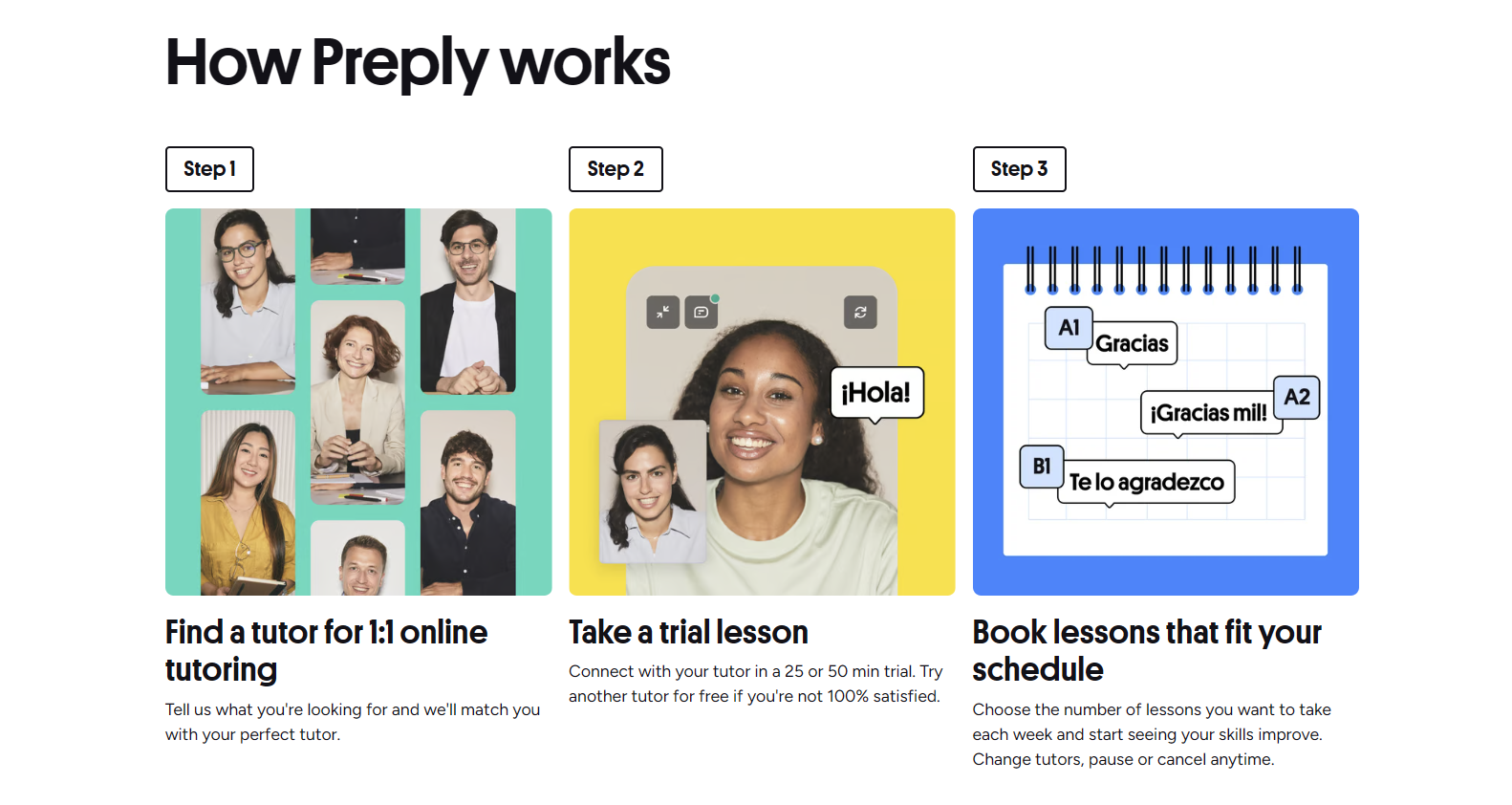
Preply's help center serves as the primary self-service resource for students and tutors navigating the platform. It covers everything from account setup and subscription management to technical troubleshooting and policy questions. The help center is accessible directly from the Preply website or mobile app, and it organizes articles into categories like Getting Started, Payments, Lessons, and Account Settings. Most users find their answers here without needing to contact support directly.
Contents
- 1. Getting Started with Preply Support
- 2. How to Contact Preply Customer Service
- 3. Subscription Management and Billing
- 4. Cancellation, Pausing, and Refunds
- 5. Technical Issues and Troubleshooting
- 6. Lesson Policies: Rescheduling, No-Shows, Expiration
- 7. Preply for Business Support
- 8. Mobile App and Platform Help
- 9. Tutor-Related Questions
- 10. Payment and Withdrawal Information
- 11. Final Assessment of Preply Help Center
The search function works well for specific queries. Type a keyword like "refund" or "reschedule" and you'll see relevant articles ranked by popularity. Articles typically include step-by-step instructions with screenshots, which helps when you're trying to follow along on your own screen. The help center also surfaces related articles at the bottom of each page, so you can explore connected topics without returning to the main index.
If you're new to Preply, start with the Getting Started section. It walks through creating an account, finding a tutor, booking your first lesson, and using the video classroom. The articles assume no prior knowledge, which is helpful if you're not familiar with online tutoring platforms. One thing to note: the help center updates regularly as Preply rolls out new features, so screenshots occasionally lag behind the current interface. When in doubt, check the article's last updated date near the top.
How to Contact Preply Customer Service
Preply offers several ways to reach a human when self-service doesn't solve your problem. The most direct method is the live chat widget, accessible from the help center or your account dashboard. It's staffed during business hours (typically European time zones) and handles billing questions, technical issues, and policy clarifications. Outside those hours, the chat switches to a bot that can search help articles or create a ticket for the support team.
- Live chat via help center or dashboard — fastest for urgent issues
- Email support at support@preply.com — better for complex cases needing documentation
- Help center contact form — routes to the same queue as email
- Preply for Business customers get a dedicated account manager and priority support
- No phone support is offered for individual users
Response times vary. Live chat usually connects within a few minutes during peak hours, though wait times can stretch to 15-20 minutes during busy periods. Email tickets typically receive a first response within 24 hours on business days. Complex issues like payment disputes or account suspensions may take longer because they require escalation to specialist teams. If you're a tutor with a withdrawal problem, mention that in your first message — those tickets often get prioritized.
Subscription Management and Billing
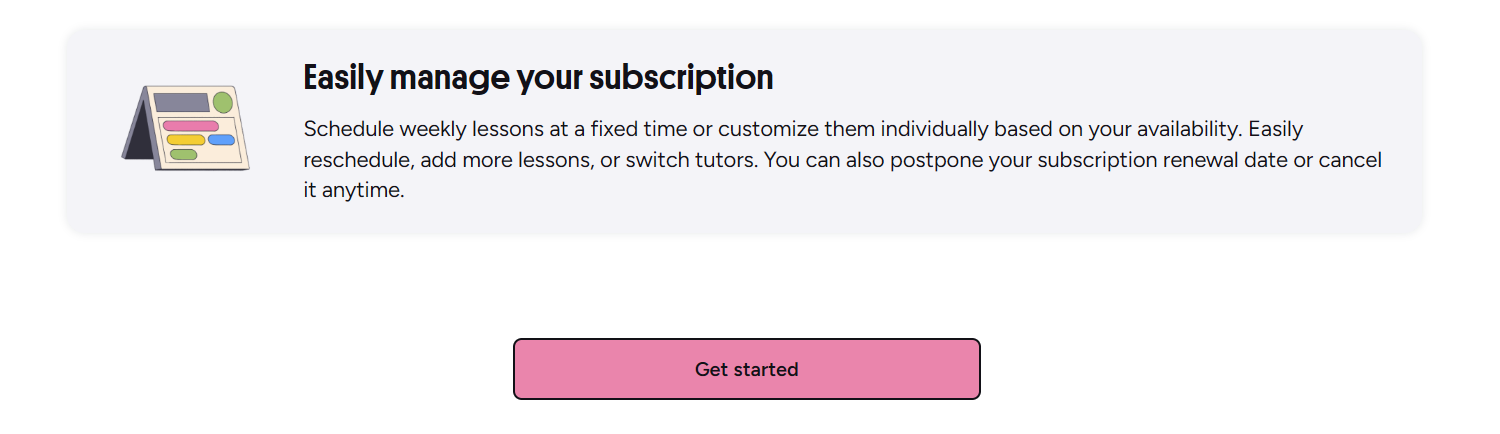
Preply operates on a subscription model where you purchase a package of lesson hours upfront. Plans renew automatically each month unless you cancel or pause. The help center has detailed articles on changing your plan, updating payment methods, and understanding charges. Your subscription dashboard shows current plan, renewal date, remaining hours, and billing history. You can upgrade or downgrade at any time; changes take effect at the next billing cycle.
Billing issues are among the most common support requests. Double charges usually happen when a payment fails and retries, or when you have multiple active subscriptions (for example, a personal plan and a business plan). The help center explains how to identify legitimate charges versus duplicates. If you see a charge from "Preply Inc" on your statement and don't recognize it, check whether a family member or colleague uses your payment method on their account.
Scroll horizontally to see all columns
| Plan Type | Hours per Month | Best For | Flexibility |
|---|---|---|---|
| Monthly | 4, 8, 12, or 16 | Regular learners | Cancel anytime |
| Quarterly | Same options | Committed students | 10% discount |
| Annual | Same options | Long-term learners | 20% discount |
| Pay As You Go | Single lessons | Occasional practice | No commitment |
Payment methods vary by region. Most countries support major credit cards, PayPal, and sometimes local options like iDEAL or Sofort. The help center lists supported methods per country. If your preferred method isn't available, you may need to use a different one or contact support to ask about upcoming additions. Preply doesn't store full card details — they use PCI-compliant payment processors, which is standard for platforms handling recurring billing.
Cancellation, Pausing, and Refunds
Cancelling a subscription stops future renewals but doesn't refund unused hours from the current period. You keep access until the billing period ends. The help center walks through the cancellation steps: go to Settings > Subscription > Cancel Subscription, then confirm. It's straightforward, but the interface tries to retain you with pause offers or discounts. Read each screen carefully so you don't accidentally accept a pause when you want to cancel.
- Log in and open Settings from your profile menu
- Select Subscription from the left sidebar
- Click Cancel Subscription and choose a reason
- Decline any pause or discount offers if you're sure
- Confirm cancellation — you'll receive an email confirmation
- Your plan remains active until the current period ends
Pausing is different from cancelling. A pause keeps your plan intact but stops billing for up to three months. Your unused hours don't expire during a pause, which is useful if you're traveling or have a temporary schedule conflict. You can resume anytime. The help center notes that promotional pricing may not return after a pause, so factor that in if you're on a discounted rate.
Refund requests go through support, not an automated system. You'll need to explain the situation and provide evidence (screenshots, timestamps, tutor messages). The team reviews each case individually. Approved refunds return to the original payment method within 5-10 business days. Denied requests include a reason, and you can ask for a second review if you have new information. The help center is transparent about the policy, but some users find the "no refunds for unused hours" rule strict compared to other subscription services.
Technical Issues and Troubleshooting
The video classroom runs in your browser using WebRTC, so most technical problems stem from browser permissions, network conditions, or device settings. The help center has a dedicated troubleshooting section covering camera/microphone access, connection quality, screen sharing, and the whiteboard tool. Chrome and Firefox work best; Safari has occasional issues with screen sharing on older macOS versions. The mobile app uses native video APIs and tends to be more stable on phones and tablets.
- Allow camera and microphone permissions in browser settings
- Close other video apps (Zoom, Teams) that may lock devices
- Use a wired connection or sit close to your router
- Disable VPN or proxy if experiencing lag
- Clear browser cache and cookies for preply.com
- Try incognito/private mode to rule out extensions
- Update browser and operating system
- Restart your device before important lessons
If troubleshooting doesn't work, the help center suggests running the Preply connection test (available in the classroom lobby) and sharing the results with support. The test measures bandwidth, latency, and packet loss, which helps the team determine whether the issue is on your end, the tutor's end, or Preply's infrastructure. Platform-wide outages are rare but happen — check Preply's status page or social media if you suspect a broader problem.
Most classroom issues resolve with a browser restart and permission check. The connection test saves everyone time by pinpointing whether it's a local network problem or something Preply needs to fix.
Lesson Policies: Rescheduling, No-Shows, Expiration
Preply's lesson policies aim to balance student flexibility with tutor schedule protection. You can reschedule or cancel a lesson up to 4 hours before start time without penalty. Within 4 hours, the lesson counts as used — the tutor gets paid, and the hour is deducted from your subscription. This policy is stricter than some competitors, so it's worth setting calendar reminders. The help center explains the 4-hour window clearly and notes that timezone differences can catch people off guard.
- Reschedule or cancel >4 hours before: free, hour returns to balance
- Reschedule or cancel <4 hours before: hour deducted, tutor paid
- Tutor cancels >4 hours before: hour returns, you can rebook
- Tutor cancels <4 hours before: hour returns plus one free replacement hour
- Student no-show (no cancellation): hour deducted after 15 minutes
- Tutor no-show: hour returns plus one free replacement hour
Lesson expiration is a common point of confusion. Subscription hours expire at the end of each billing period — they don't roll over. If you have a 12-hour monthly plan and use only 8 hours, the remaining 4 disappear at renewal. Annual plans work differently: you get all hours upfront, and they expire 12 months from purchase. The help center recommends booking lessons in advance to avoid losing hours. Some tutors offer package deals outside the subscription system, but those aren't covered by Preply's policies.
Scroll horizontally to see all columns
| Scenario | Hour Deducted | Compensation |
|---|---|---|
| Student cancels >4 hrs | No | Hour returns to balance |
| Student cancels <4 hrs | Yes | None |
| Student no-show | Yes | None |
| Tutor cancels >4 hrs | No | Hour returns |
| Tutor cancels <4 hrs | No | Hour returns + 1 free hour |
| Tutor no-show | No | Hour returns + 1 free hour |
Preply for Business Support
Business accounts have a separate support tier with faster response times and a dedicated account manager for larger teams. The help center includes a Business section covering admin dashboard features, team management, reporting, and billing for multiple users. Admins can assign licenses, track team progress, and set learning goals. The billing is consolidated into a single invoice, which simplifies expense tracking for finance departments.
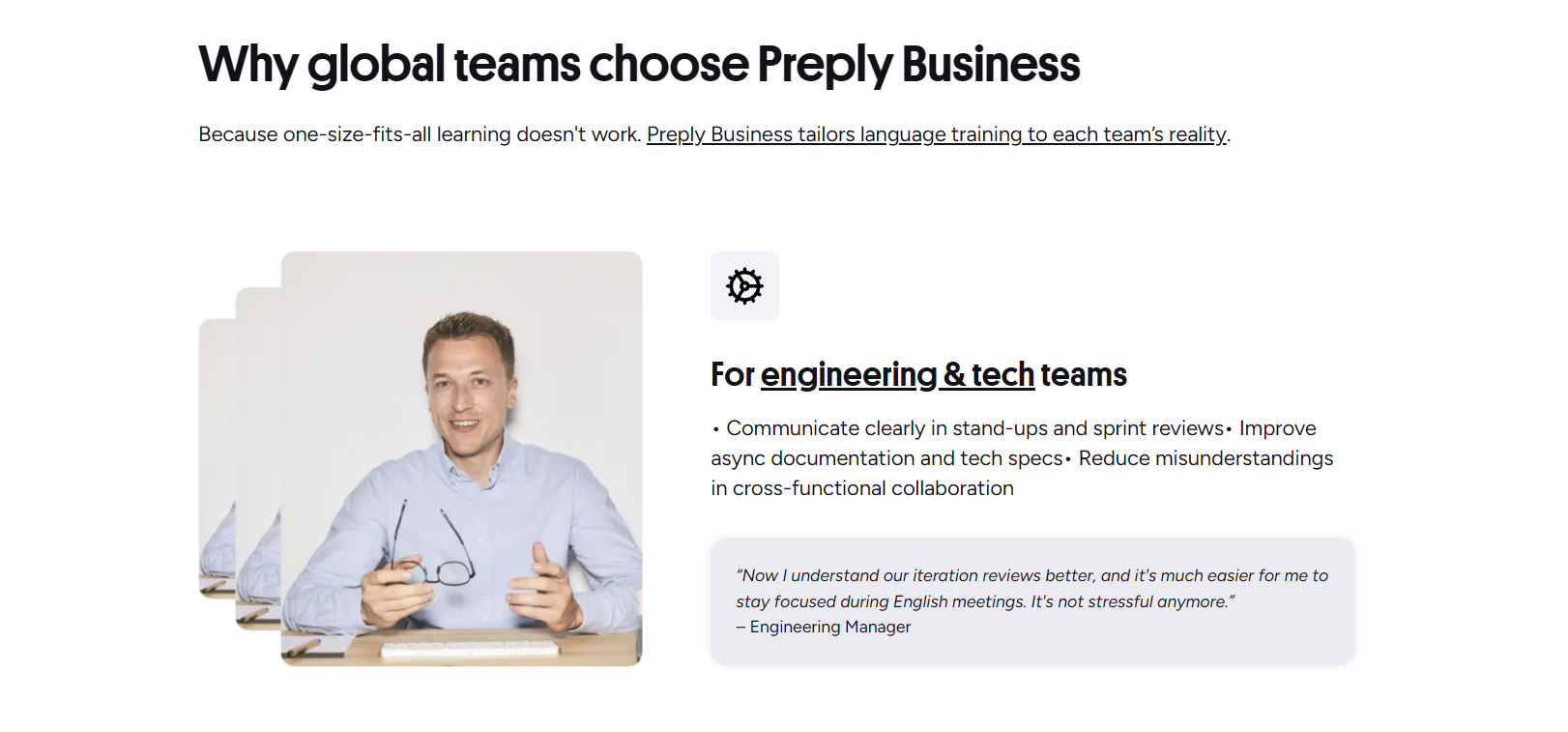
Business support handles questions that individual users don't face: SSO integration, SCIM provisioning, custom reporting, and volume discounts. The account manager typically schedules quarterly check-ins to review usage and suggest optimizations. Smaller teams (under 10 users) use the standard support channels but with priority routing. The help center articles for business features are more technical and assume admin-level familiarity with the platform.
Mobile App and Platform Help
Preply's mobile apps (iOS and Android) offer most desktop features but with some limitations. The help center has platform-specific articles for app-only issues like push notifications, offline mode, and background audio. The apps are generally well-rated, but users occasionally report sync delays between mobile and desktop — for example, a lesson booked on the phone might not appear immediately on the web dashboard. Force-closing and reopening the app usually forces a sync.

App updates roll out every few weeks. The help center maintains a changelog, but it's not always prominent. If a feature behaves differently after an update, check the App Store or Play Store release notes first. Common app-specific issues include: notifications not appearing (check system notification settings), video freezing on cellular data (switch to Wi-Fi), and the whiteboard not loading (clear app cache in device settings). The desktop web version remains the most feature-complete experience.
- Enable push notifications in both app and system settings
- Use Wi-Fi for video lessons — cellular can be unstable
- Clear app cache monthly to prevent sync issues
- Update the app promptly for bug fixes
- Log out and back in if lessons don't sync across devices
- Background audio works for vocabulary review but not live lessons
Tutor-Related Questions
Finding the right tutor is the core Preply experience, and the help center covers search filters, trial lessons, tutor profiles, and switching tutors. You can filter by language, price range, availability, specialty (IELTS, business, kids), and native speaker status. Trial lessons are 50% off your first hour with any tutor, which lets you test compatibility before committing subscription hours. The help center suggests booking trials with 2-3 tutors to compare teaching styles.
The trial lesson discount is the single most useful feature for new students. Use it liberally — chemistry with a tutor matters more than credentials on paper.
If you have issues with a tutor — consistent lateness, poor connection, mismatched teaching style — the help center explains how to report concerns. Preply takes tutor quality seriously but handles complaints privately. You can also leave a public review after a lesson, which helps other students. Switching tutors is easy: just book with someone new. Your subscription hours aren't tied to a specific tutor. Some students keep a primary tutor and supplement with specialists for exam prep or business vocabulary.
Payment and Withdrawal Information
For students, payments are straightforward: subscription charges process automatically on your renewal date. The help center covers failed payments (retry logic, grace period, account suspension after multiple failures) and how to update payment details. For tutors, withdrawals are a separate system. Tutors accumulate earnings from completed lessons, minus Preply's commission (18-33% depending on tenure). Withdrawals can be requested once the balance reaches $30, processed via PayPal, Payoneer, or bank transfer depending on country.
Scroll horizontally to see all columns
| Method | Minimum | Fee | Processing Time |
|---|---|---|---|
| PayPal | $30 | 2% (max $20) | 1-2 business days |
| Payoneer | $30 | $1-3 fixed | 2-3 business days |
| Bank Transfer | $100 | $15-30 | 3-7 business days |
| Wise | $30 | Variable | 1-3 business days |
Withdrawal delays are a frequent tutor complaint. The help center states 1-7 business days depending on method, but tutors report occasional holds for verification, especially on first withdrawals or after large amounts. "Your withdrawal is pending" status means Preply is processing it — not that there's a problem. If it exceeds the stated timeframe, contact support with the withdrawal ID. Students sometimes see "Preply Inc" charges on statements and worry about fraud; the help center confirms this is the legitimate billing descriptor.
Final Assessment of Preply Help Center
Preply's help center is comprehensive and well-organized for a platform of its size. The search works reliably, articles are written in plain language, and the categorization matches how users actually think about problems. The subscription and billing sections are particularly thorough — they anticipate the edge cases that generate support tickets. Technical troubleshooting covers the most common classroom issues without overwhelming non-technical users. The business support tier is a genuine differentiator for teams.
Weaknesses exist. The refund policy for unused subscription hours is stricter than many users expect, and the help center doesn't soften that reality. Some articles show outdated screenshots after UI updates. The lack of phone support frustrates users with urgent, complex issues. Tutor withdrawal delays, while documented, remain a pain point. The mobile app help section could be more prominent given how many students primarily use phones. Overall, though, the help center reduces support volume effectively — most questions are answered without human intervention.
Frequently Asked Questions
How do I contact Preply customer service?
Use the live chat in the help center or your dashboard for the fastest response. Email support@preply.com for complex issues. Preply does not offer phone support for individual users.
What is Preply's refund policy for unused lessons?
Monthly subscription hours expire each billing period and are not refundable. Annual plans may qualify for a refund within 14 days in the EU. Refunds for technical issues or tutor no-shows are reviewed case by case.
How long does Preply take to respond to support tickets?
Live chat typically connects within 2-15 minutes during business hours. Email tickets receive a first response within 12-24 hours on business days. Complex issues may take 2-5 business days to resolve.
Can I pause my Preply subscription instead of cancelling?
Yes. You can pause for up to three months. Billing stops, unused hours don't expire, and you can resume anytime. Promotional pricing may not return after a pause.
What happens if my tutor doesn't show up for a lesson?
If the tutor is a no-show, the lesson hour returns to your balance and you receive one free replacement hour. Contact support if this isn't applied automatically.
How do I withdraw my earnings as a Preply tutor?
Request a withdrawal once your balance reaches $30. Options include PayPal, Payoneer, bank transfer, or Wise depending on your country. Processing takes 1-7 business days.
Why is Preply not working on my browser?
Check camera/microphone permissions, close other video apps, disable VPN, clear cache, and try Chrome or Firefox. Run the connection test in the classroom lobby for detailed diagnostics.