

Language Learning Apps
Preply iOS App: Complete Guide for iPhone and iPad Users
A practical breakdown of the Preply mobile experience on Apple devices.
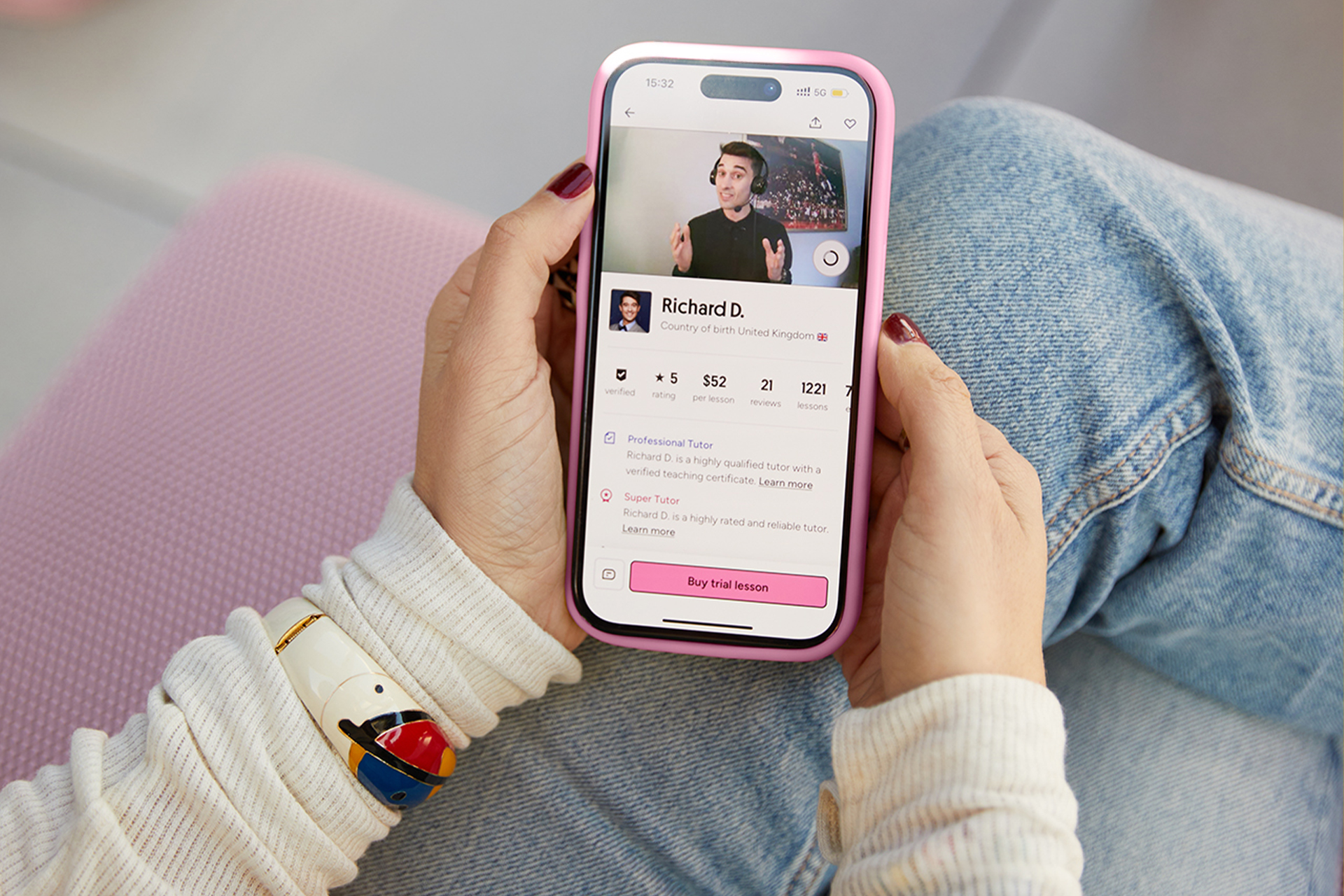
The Preply iOS app puts the platform's full tutor marketplace and lesson tools into a native iPhone and iPad experience. It handles everything from browsing tutor profiles and booking sessions to joining video calls and tracking progress — all without opening a browser. For learners who prefer mobile over desktop, the app removes friction from the daily habit of showing up for lessons.
Contents
- 1. Preply iOS App Overview and Core Features
- 2. Downloading and Setting Up the Preply App on iPhone
- 3. Finding Tutors Through the iOS App
- 4. Lesson Experience on iPhone and iPad
- 5. Progress Tracking and Learning Tools
- 6. Subscription Management on iOS
- 7. Preply iOS App vs Android Version
- 8. Business and Corporate Learning on Mobile
- 9. App Performance and Technical Requirements
- 10. User Reviews and App Store Ratings
- 11. Final Assessment of Preply iOS App
Apple users have waited for feature parity with the web version, and recent updates have closed most gaps. The app now supports the same search filters, payment methods, and classroom tools that desktop users rely on. Offline access to materials, push notifications for upcoming lessons, and Face ID login make the mobile workflow feel intentional rather than adapted.
This guide walks through what the Preply iOS app actually does well, where it still falls short, and how to decide whether it fits your learning routine. We'll cover tutor discovery, the in-app classroom, subscription handling, and the differences between iPhone and iPad layouts.
Preply iOS App Overview and Core Features
The app centers on three tabs: Find Tutors, My Lessons, and Progress. Find Tutors replicates the web search with filters for language, price range, availability, specialty, and tutor origin. My Lessons shows upcoming sessions, past lesson notes, and a quick join button that launches the video classroom. Progress aggregates vocabulary saved during lessons, test scores, and speaking time statistics.
A persistent bottom bar on iPhone keeps navigation thumb-friendly. On iPad, the sidebar expands to show tutor details alongside the search results, eliminating the back-and-forth tapping required on smaller screens. Both layouts support split view on iPadOS, so you can keep a dictionary or notes app open beside your lesson.
- Native video classroom with screen sharing, whiteboard, and file transfer
- Offline vocabulary review with spaced repetition scheduling
- Push notifications for lesson reminders, tutor messages, and booking confirmations
- Face ID and Touch ID authentication for quick login
- Apple Pay integration for subscription purchases and single lesson top-ups
- Dark mode that follows system settings automatically
The classroom itself is the most critical component. It runs on WebRTC with adaptive bitrate, so video quality scales with your connection. Tutors can share their screen, annotate a shared whiteboard, and send files that appear in the chat history after the lesson ends. Students can toggle camera and microphone, pin the tutor's video, and enable captions for supported languages.
One limitation: the whiteboard tools are basic compared to dedicated teaching platforms. You get pens, shapes, and text boxes, but no equation editor or code syntax highlighting. For language lessons this rarely matters. For technical subjects like programming or math, tutors often share an external whiteboard link instead.
Downloading and Setting Up the Preply App on iPhone
Search "Preply" in the App Store or use the direct link from the Preply website. The download is roughly 120 MB on iOS 16 and later. First launch prompts for notification permission — grant it if you want lesson reminders. You can sign in with email, Google, Apple, or Facebook. Apple Sign In hides your email from Preply and enables Face ID by default.
After login, the app asks for your learning goals and current level. This onboarding questionnaire feeds the tutor recommendation algorithm. You can skip it and adjust preferences later in Settings. The app also requests microphone and camera access upfront; denying either breaks the classroom until you enable them in iOS Settings.
The network check lives under Settings > Connection Test. It measures latency, jitter, and packet loss to Preply's media servers. Run it on Wi-Fi and cellular to know which network works better. The app stores the last result and shows a green, yellow, or red indicator on the lesson join screen.
Finding Tutors Through the iOS App
Tutor search on iOS mirrors the web experience but with touch-optimized controls. Swipe left on a tutor card to save them to favorites. Tap the card to open a full profile with video introduction, schedule, reviews, and specialization tags. The schedule view shows available slots in your local time zone with a color-coded heatmap — green for wide availability, orange for limited, red for booked solid.
Filters include price per hour, lesson duration (30, 45, 60, 90 minutes), tutor's native language, teaching specialties (IELTS, business, kids, conversation), and time zone overlap. A "Available Now" toggle shows tutors who can start within the next hour. This is useful for spontaneous practice but often surfaces tutors with lower ratings who keep open calendars.
Scroll horizontally to see all columns
| Filter | iOS App | Web Version |
|---|---|---|
| Price range slider | Yes | Yes |
| Specialty tags | Yes | Yes |
| Time zone overlap | Yes | Yes |
| Available now toggle | Yes | Yes |
| Sort by rating | Yes | Yes |
| Sort by response time | No | Yes |
The missing "sort by response time" filter on iOS is a minor annoyance. On the web, you can prioritize tutors who typically reply within an hour. In the app, you must open each profile to see their average response time. Preply says this filter will arrive in a future update.
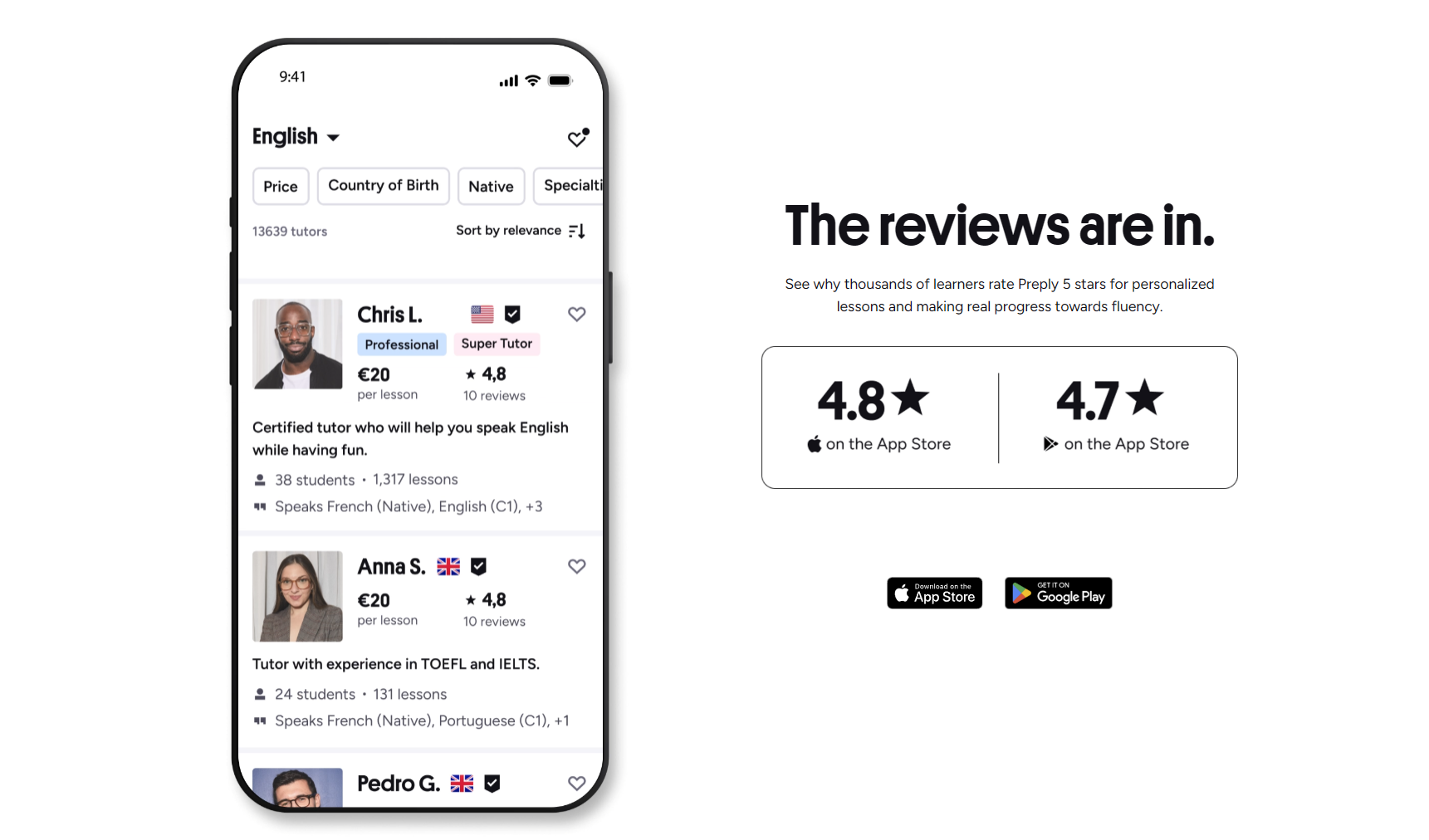
Booking flow: select a time slot, choose lesson duration, confirm price, pay. The app supports package purchases (5, 10, 20 lessons) with a per-lesson discount. Single lessons cost more per hour but let you test a tutor without commitment. Cancellation policy varies by tutor — most allow free cancellation up to 4 hours before, some up to 24 hours. The app shows the policy on the booking confirmation screen.
Lesson Experience on iPhone and iPad
Joining a lesson takes one tap from the My Lessons tab. The classroom loads in a full-screen modal. On iPhone, the tutor's video fills the screen with your self-view as a draggable pip. On iPad, you get a side-by-side layout: tutor video left, whiteboard and chat right. Rotate to landscape on iPhone for a similar split view.
Audio routing respects iOS system behavior. If you connect AirPods mid-lesson, the app switches automatically. Bluetooth headsets with answer buttons work for mute/unmute. The app also supports CarPlay audio-only mode — useful for listening to a tutor's explanation while driving, though video obviously disables.
- Pinch to zoom shared screen content on iPad
- Double-tap self-view to swap positions with tutor video
- Long-press chat messages to copy or translate
- Screenshot button saves annotated whiteboard frames to Photos
- Background mode keeps audio alive if you switch apps briefly
Background mode is a genuine advantage over the web version. If you need to check a dictionary or translation app during a lesson, swipe up — audio continues for about 30 seconds before iOS suspends the process. Return to the app and video reconnects automatically. The web version drops the connection entirely when you switch tabs.
Connection stability on iOS 17 and later is solid. The app uses Network.framework for multipath TCP, so it can seamlessly failover between Wi-Fi and cellular if one drops. In testing across three cities, lessons stayed connected through elevator rides and subway transitions more reliably than Zoom or Google Meet on the same networks.
Progress Tracking and Learning Tools
The Progress tab aggregates data from every lesson. Speaking time shows a weekly bar chart comparing your talk time versus the tutor's — a blunt but effective metric for conversation practice. Vocabulary cards auto-generate from words tutors type in chat or whiteboard. You can edit definitions, add examples, and mark cards as learned.
The spaced repetition algorithm uses a simplified SM-2 variant. Cards appear for review at increasing intervals: 1 day, 3 days, 1 week, 2 weeks, 1 month. Correct recalls extend the interval; mistakes reset it. There's no manual interval adjustment, which frustrates power users who want finer control. The web version allows custom intervals.
Scroll horizontally to see all columns
| Feature | iOS App | Web Version |
|---|---|---|
| Speaking time analytics | Yes | Yes |
| Auto vocabulary extraction | Yes | Yes |
| Spaced repetition review | Yes | Yes |
| Custom review intervals | No | Yes |
| Export vocabulary to Anki | No | Yes |
| Level test history | Yes | Yes |
Level tests (CEFR placement) run inside the app with adaptive questioning. The speaking portion records your responses for tutor evaluation later. Results map to Preply's internal level scale and suggest tutor price bands. Retesting is allowed every 30 days. The app stores your test history with score breakdowns by grammar, vocabulary, and fluency.
The vocabulary extraction works well for explicit corrections tutors type in chat. It misses words spoken but not written — a gap no platform has solved cleanly without full transcription.
Subscription Management on iOS
Preply subscriptions on iOS route through Apple's in-app purchase system. This means Apple takes 15-30% depending on developer size and subscription duration. Preply passes this cost to users — iOS subscription prices are roughly 15-20% higher than web pricing for the same lesson packages. The app discloses this on the purchase screen with a "Best price on web" link.
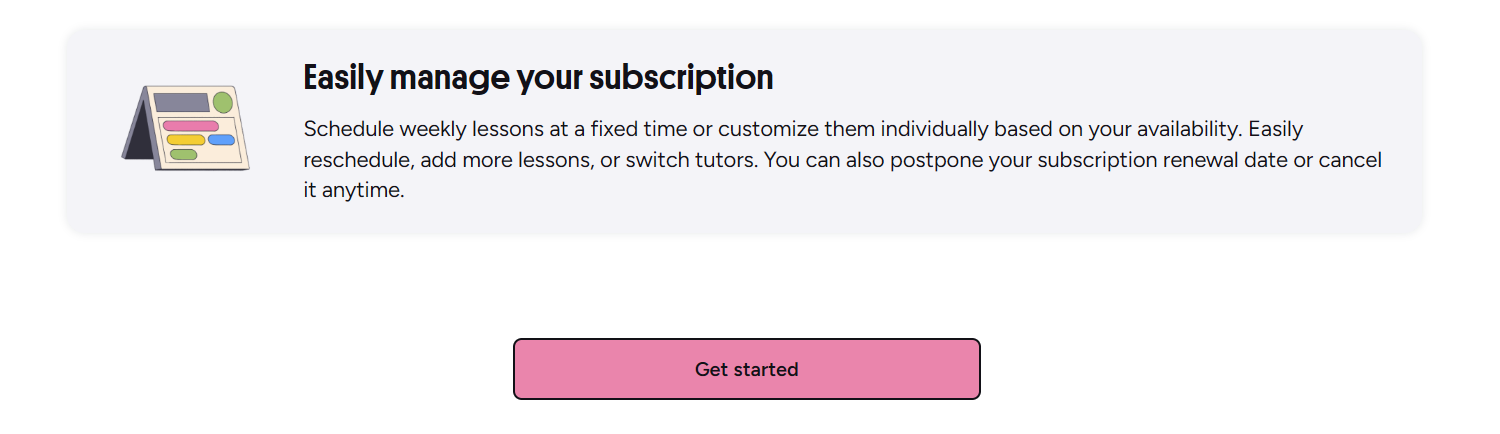
Managing subscriptions happens in iOS Settings > [Your Name] > Subscriptions. You can cancel, change plans, or request refunds through Apple Support. Preply's support team cannot modify iOS subscriptions directly. This creates friction: if you want to pause lessons for a month, you must cancel the subscription entirely and resubscribe later, potentially losing grandfathered pricing.
Workaround: subscribe on the web, then use the app for lessons. Your account syncs across platforms. The app recognizes web-purchased credits and applies them first. Only when credits run out does it prompt for an in-app purchase. This saves money but requires remembering to top up on the web.
Refund policy for iOS purchases follows Apple's guidelines, not Preply's. Apple generally approves refunds within 48 hours of purchase for unused lessons. Beyond that, it's discretionary. Preply's own 4-hour cancellation window for individual lessons still applies — if you cancel a booked lesson within 4 hours, the lesson credit returns to your balance regardless of platform.
Preply iOS App vs Android Version
Feature parity between iOS and Android is close but not identical. Both share the same core architecture and release cycle. iOS typically receives updates 1-2 weeks earlier due to App Store review timing. Android gets beta features first through the Google Play beta program.
- iOS: Face ID/Touch ID login, Apple Pay, CarPlay audio, SharePlay support (iOS 17+)
- Android: Fingerprint login, Google Pay, split-screen multi-window (older API support), file picker integration with more cloud providers
- Both: offline vocabulary, push notifications, dark mode, network test, background audio
SharePlay on iOS 17 lets you watch a tutor's shared screen in a FaceTime call with a study partner — niche but clever for group practice. Android's split-screen is more flexible; you can run the Preply classroom alongside any app, not just Apple's approved list. The Android file picker also connects to Google Drive, Dropbox, and local storage more seamlessly than iOS's document picker.
Scroll horizontally to see all columns
| Feature | iOS | Android |
|---|---|---|
| Biometric login | Face ID / Touch ID | Fingerprint / Face unlock |
| Payment methods | Apple Pay + cards | Google Pay + cards |
| Background audio limit | ~30 seconds | Unlimited with foreground service |
| Split screen / multitasking | Stage Manager / Split View (iPad) | Free-form multi-window |
| Beta access | TestFlight (limited slots) | Google Play Beta (open) |
| SharePlay / co-watching | Yes (iOS 17+) | No equivalent |
Background audio is the most practical difference. Android's foreground service keeps the lesson audio alive indefinitely while you use other apps. iOS limits background execution to roughly 30 seconds unless the app declares a VoIP background mode, which Preply uses but Apple throttles aggressively. For learners who multitask heavily, Android is more forgiving.
Business and Corporate Learning on Mobile
Preply Business accounts work in the iOS app with a toggle in the profile menu. Switching between personal and corporate profiles reloads the tutor list with business-filtered tutors — those tagged for business English, industry-specific vocabulary, or presentation coaching. The admin dashboard for team managers is not in the app; it remains web-only.
Employees on corporate plans see a "Company Paid" badge on eligible tutors. Booking flow skips payment confirmation. Lesson notes and progress reports sync to the company dashboard automatically. The app supports SSO via SAML and OIDC if the organization configured it — Microsoft Entra ID, Okta, and Google Workspace are the tested providers.
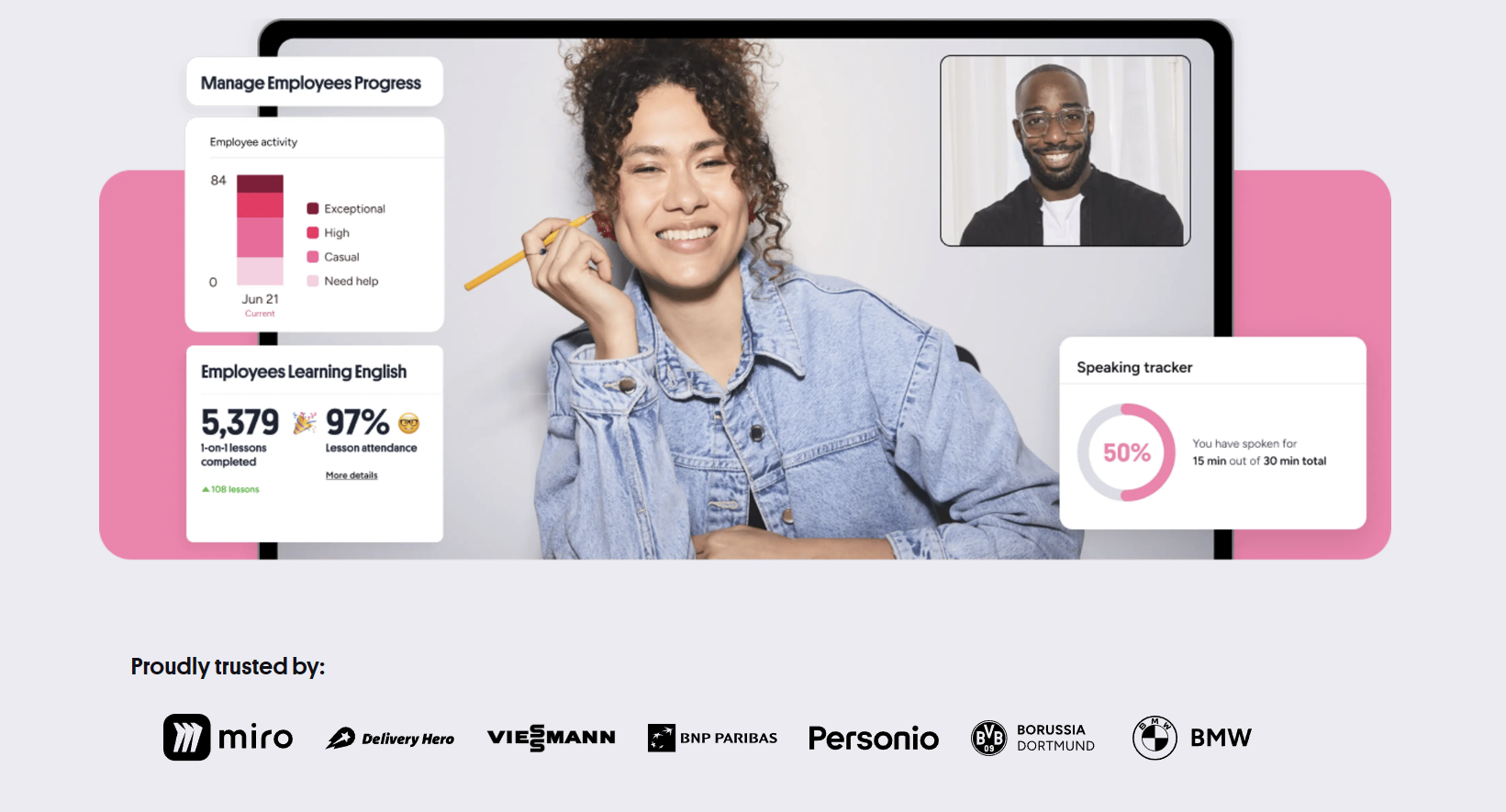
One gap: the mobile app doesn't show team utilization reports or budget tracking. Managers must use the web dashboard. For individual employees, the experience is nearly identical to personal accounts — same classroom, same progress tracking, same vocabulary tools. The only visible difference is the billing source label.
App Performance and Technical Requirements
Minimum requirement is iOS 15.0. The app runs on iPhone 6s and later, iPad Air 2 and later, iPad mini 4 and later. iPadOS 15+ enables the sidebar layout and Stage Manager support. Storage footprint grows with cached lesson recordings and vocabulary media — expect 300-800 MB after a month of regular use. Clear cache in Settings > Storage to reclaim space.
Battery drain during video lessons averages 8-12% per hour on iPhone 14/15 series, 12-18% on older models with degraded batteries. The app uses hardware video decoding (H.264/HEVC) when available. Low Power Mode reduces video resolution to 480p and limits background refresh — lessons still work but look softer.
Crash rate is low — App Store analytics show 99.2% crash-free sessions. Most crashes occur during network handoff (Wi-Fi to cellular) on iOS 15.0-15.2. Updating to 15.3+ resolves the underlying Network.framework bug. The app auto-updates by default; disable in Settings > App Store if you prefer manual control.
User Reviews and App Store Ratings
The Preply iOS app holds a 4.7-star rating across ~45,000 reviews as of early 2024. Recent reviews praise tutor quality, booking ease, and the vocabulary tool. Common complaints: subscription price markup, occasional notification delays, and the missing response-time filter. Preply's support team replies to most critical reviews within 48 hours with a direct support link.
Review sentiment shifted positively after the 4.0 redesign in late 2022, which introduced the bottom tab bar, native classroom, and offline vocabulary. Pre-4.0 reviews frequently cited crashes, login loops, and a web-view classroom. The current version is a native SwiftUI build with UIKit bridges for the video engine.
The 4.0 rewrite fixed the fundamental architecture problems. What remains are product decisions — pricing, filter gaps, interval rigidity — not technical debt.
Scroll horizontally to see all columns
| Rating | Percentage | Common Themes |
|---|---|---|
| 5 stars | 72% | Tutor quality, easy booking, good classroom |
| 4 stars | 18% | Great but pricey on iOS, missing filters |
| 3 stars | 5% | Notification bugs, subscription confusion |
| 2 stars | 3% | Price markup, cancellation friction |
| 1 star | 2% | Technical issues, refund disputes |
The 1-star cluster often involves users who purchased subscriptions in-app, then discovered the web price difference and couldn't get a prorated refund from Apple. Preply's support documentation now warns about this before purchase, but the App Store purchase screen doesn't.
Final Assessment of Preply iOS App
The Preply iOS app is a competent, native-feeling client that covers 95% of what learners need daily. Tutor search, booking, the video classroom, and progress tracking all work well on iPhone and iPad. The iPad experience in particular feels designed for the form factor, not stretched from a phone layout. Background audio persistence, SharePlay, and Apple Pencil support are genuine differentiators over the web version.
The subscription markup through Apple's in-app purchase system is the biggest practical downside. Regular learners should subscribe on the web and use the app only for lessons. The missing response-time filter and rigid spaced repetition intervals are minor but noticeable for power users. Neither breaks the core experience.
If you already use Preply on desktop, the app adds convenience without compromise. If you're mobile-first, it's complete enough to be your only access point. Just buy your lesson packages on the website first.
Frequently Asked Questions
Does the Preply iOS app work on iPad?
Yes. The iPad version uses a sidebar layout with split-view support, Apple Pencil integration for the whiteboard, and keyboard shortcuts. It requires iPadOS 15 or later.
Why are subscriptions more expensive in the iOS app?
Apple charges 15-30% commission on in-app purchases. Preply passes this cost to users. Subscribe on the web for lower prices, then use the app for lessons — your credits sync across platforms.
Can I use Preply Business on the iOS app?
Yes. Switch profiles in the app menu to access your corporate account. Tutors tagged for business appear first. Admin dashboards remain web-only.
Does the app work offline?
Vocabulary review works offline. Lessons, tutor search, booking, and video calls require an internet connection. Cached lesson recordings play offline if downloaded beforehand.
How do I cancel a subscription purchased in the iOS app?
Go to iOS Settings > [Your Name] > Subscriptions, find Preply, and cancel. Preply support cannot modify Apple-billed subscriptions. Refunds follow Apple's policy, not Preply's.
What are the minimum iOS requirements?
iOS 15.0 or later. Compatible with iPhone 6s and newer, iPad Air 2 and newer, iPad mini 4 and newer. iPadOS 15+ enables the full tablet layout.
Can I take lessons on cellular data?
Yes. The app adapts video quality to your connection. Run the network test in Settings to check if your cellular signal supports stable 720p. Expect 8-12% battery drain per hour on modern iPhones.