

Language Learning Apps
Preply Mobile App: Features, Download, and User Experience
Everything you need to know about learning languages on the go with Preply's app
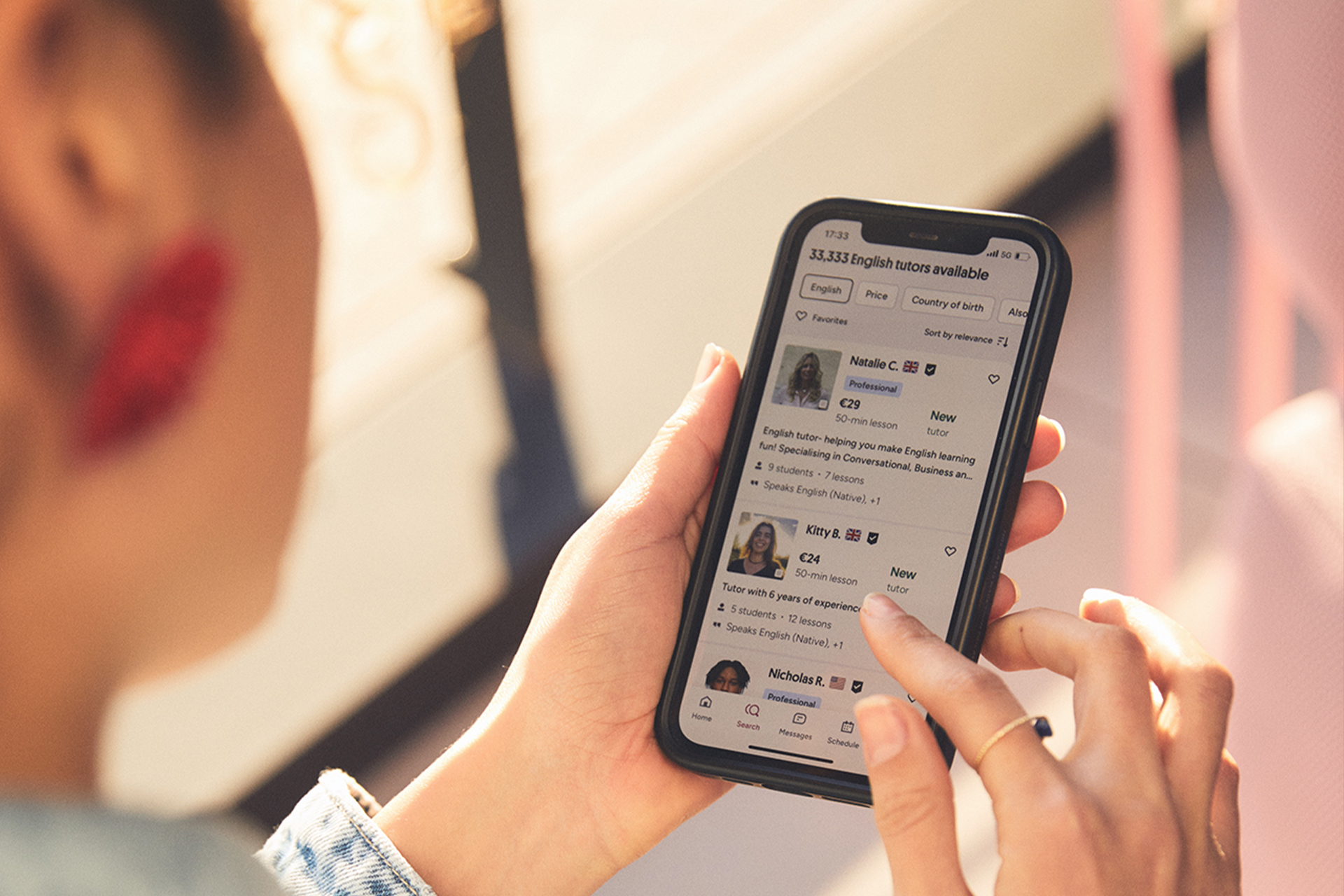
The Preply mobile app brings the platform's tutor marketplace to smartphones and tablets, letting students book lessons, join video sessions, and track progress without sitting at a desk. Tutors get a companion tool for managing schedules and communicating with students on the move. Both iOS and Android versions exist, plus a desktop app for those who prefer a larger screen. This article walks through what the app actually does, how it compares to the web version, and whether it's worth installing.
Contents
- 1. What Is the Preply Mobile App
- 2. Getting Started: Download and Setup
- 3. Core Features for Language Learners
- 4. Finding and Booking Tutors in the App
- 5. Lesson Experience on Mobile
- 6. Progress Tracking and Learning Tools
- 7. Preply App for Tutors: Teaching on Mobile
- 8. iOS vs Android: Platform Differences
- 9. Mobile App vs Desktop Experience
- 10. Subscription Management in the App
- 11. User Reviews and Common Feedback
- 12. Troubleshooting and Support Access
- 13. Privacy, Permissions, and Data Usage
- 14. Preply Mobile App for Business and Teams
- 15. Final Assessment of Preply Mobile App
Preply started as a web-first platform. The mobile apps arrived later to meet demand for flexibility. Students wanted to squeeze in a Spanish lesson during a lunch break or review vocabulary on the subway. Tutors needed to adjust availability or reply to messages between classes. The apps handle those core needs, though some advanced features still live on the web. Understanding where the app shines and where it falls short helps you decide how to fit it into your routine.
You'll find the app in the Apple App Store and Google Play Store. Search for "Preply" and look for the blue logo with the white speech bubble. The download is free. Account creation happens inside the app or on the website — your data syncs across devices. If you already have a Preply account, sign in with your email, Google, or Apple ID. The onboarding flow asks for your target language, goals, and preferred schedule, then suggests tutors who match.
What Is the Preply Mobile App
The Preply mobile app is a native application for iOS and Android that replicates most of the web platform's student and tutor functions. Students browse tutor profiles, watch introduction videos, check availability, book lessons, and join video calls through the app's built-in classroom. Tutors manage their calendars, accept or decline booking requests, message students, and teach lessons from their phones or tablets. The app also includes vocabulary review tools, progress tracking, and push notifications for upcoming classes and messages.
Preply also offers a desktop app for Windows and macOS. It's essentially a wrapper around the web version with a few extras like system notifications and a dedicated window. The mobile apps are native builds, not web views, so they feel faster and integrate with OS features like picture-in-picture for video calls. If you switch between phone, tablet, and computer, your lesson history, messages, and vocabulary lists stay in sync.
Getting Started: Download and Setup
Downloading takes a minute. Open the App Store on iOS or Play Store on Android, search Preply, and tap Install. The app is roughly 100–150 MB depending on the platform. First launch presents a language selection screen — choose from 50+ options including English, Spanish, French, German, Chinese, Japanese, and many others. Next, you pick a learning goal: conversation practice, test preparation, business language, travel basics, or general improvement. The app then asks for your current level, from complete beginner to advanced.
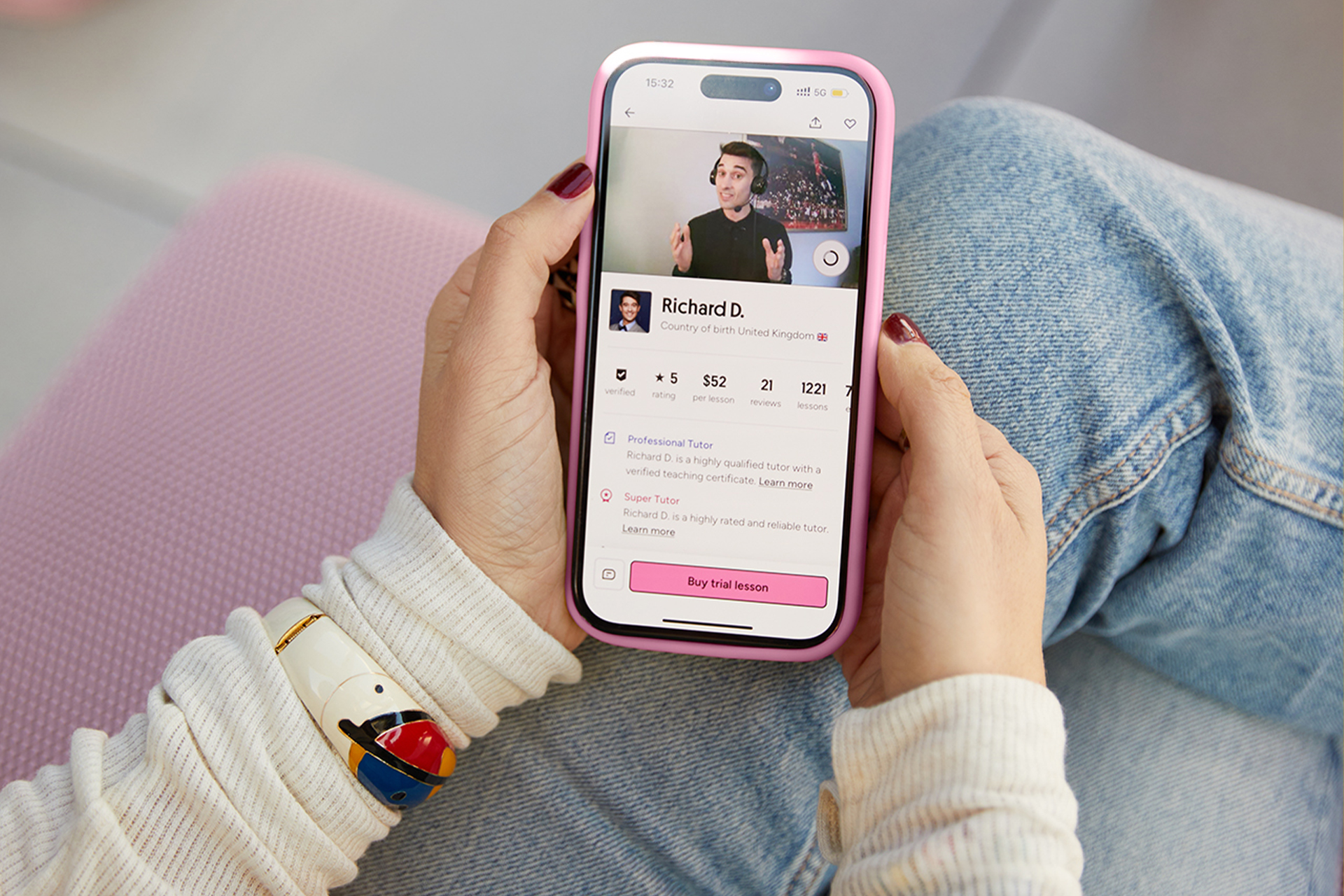
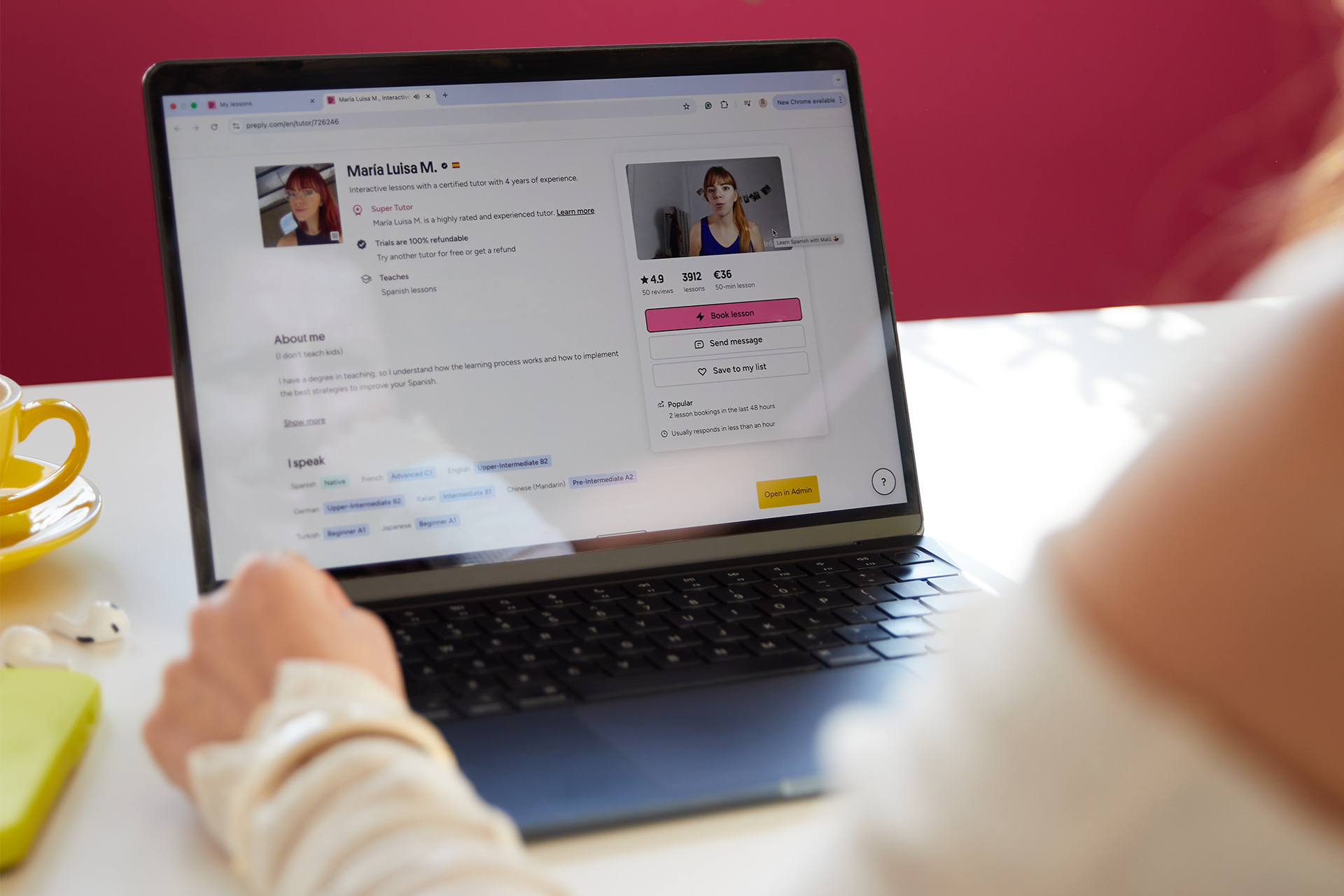
After goals and level, you see a calendar view to mark preferred days and times. This helps Preply filter tutors whose schedules align with yours. You can skip this step and adjust later in settings. The final screen shows tutor recommendations with photos, hourly rates, ratings, and short video intros. Tap a tutor to view their full profile: education, certifications, teaching style, student reviews, and available slots. Booking a trial lesson takes a few taps — select a time, confirm payment method, and you're set.
Core Features for Language Learners
The student side of the app centers on three workflows: finding tutors, taking lessons, and reviewing material between sessions. Tutor search lets you filter by language, price range, availability, specialty (IELTS, business, kids, etc.), native speaker status, and rating. Each profile shows a one-minute intro video — useful for gauging teaching style and accent before booking. You can favorite tutors to compare later.
The built-in classroom is where lessons happen. It supports video, audio, screen sharing, a collaborative whiteboard, and file uploads. On mobile, the whiteboard works with finger or stylus input. Screen sharing is limited compared to desktop — you can share your phone screen on Android, but iOS restricts it to specific apps. The classroom also has a chat panel for sending links, corrections, or vocabulary words during the lesson. Everything saves automatically to your lesson history.
- Tutor search with 15+ filters including price, specialty, and time zone
- Integrated video classroom with whiteboard and chat
- Vocabulary flashcards spaced repetition system
- Lesson notes and homework assignments from tutors
- Progress dashboard with speaking time and lesson count
- Push notifications for upcoming lessons and messages
- Offline access to downloaded vocabulary lists
- Dark mode and adjustable text size
Finding and Booking Tutors in the App
The tutor discovery flow works well on mobile. The search results page shows tutor cards with photo, name, rating, number of reviews, hourly price, and a "Book trial" button. Tapping a card opens the full profile. You can watch the intro video inline, read the bio, see education and certifications, and scroll through student reviews. The availability calendar displays slots in your local time zone — no manual conversion needed. Booking a trial lesson (usually 50 minutes at a discounted rate) requires a payment method on file. Regular lessons can be booked individually or as a recurring weekly slot.
One limitation: the app doesn't show tutor response time or acceptance rate as prominently as the web version. On desktop, you see "Typically replies within 2 hours" or similar. On mobile, that info is buried in the profile details. If you message multiple tutors to compare, you might not realize one is slow to respond until you wait. The web version also lets you filter by "Instant booking" — tutors who accept lessons without manual approval. That filter exists in the app but is less visible.
Scroll horizontally to see all columns
| Filter | Mobile App | Web Version |
|---|---|---|
| Language | Yes | Yes |
| Price range | Yes | Yes |
| Availability | Yes | Yes |
| Specialty (IELTS, business, kids) | Yes | Yes |
| Native speaker only | Yes | Yes |
| Instant booking | Hidden in advanced | Prominent toggle |
| Response time | Profile detail only | Visible in results |
| Acceptance rate | Not shown | Shown in profile |
Lesson Experience on Mobile
Taking a lesson on a phone works surprisingly well for conversation practice. The video fills the screen, and the tutor's video appears in a movable picture-in-picture window. You can pinch to zoom the shared whiteboard or screen share. Audio quality depends on your connection and microphone — wired headphones help. The chat panel slides in from the side without covering the video. Tutors can send vocabulary cards that save directly to your review deck.
Tablets offer a better experience than phones. The larger screen lets you keep video, whiteboard, and chat visible simultaneously. On a phone, you toggle between views. If your tutor shares a document or website, reading it on a phone screen can be frustrating. For grammar-heavy lessons or document review, a tablet or desktop is preferable. The app remembers your last used device for each tutor, so switching mid-week is seamless.
Phone lessons work fine for speaking practice. For anything with shared documents or heavy whiteboard use, get a tablet or use the desktop app.
Progress Tracking and Learning Tools
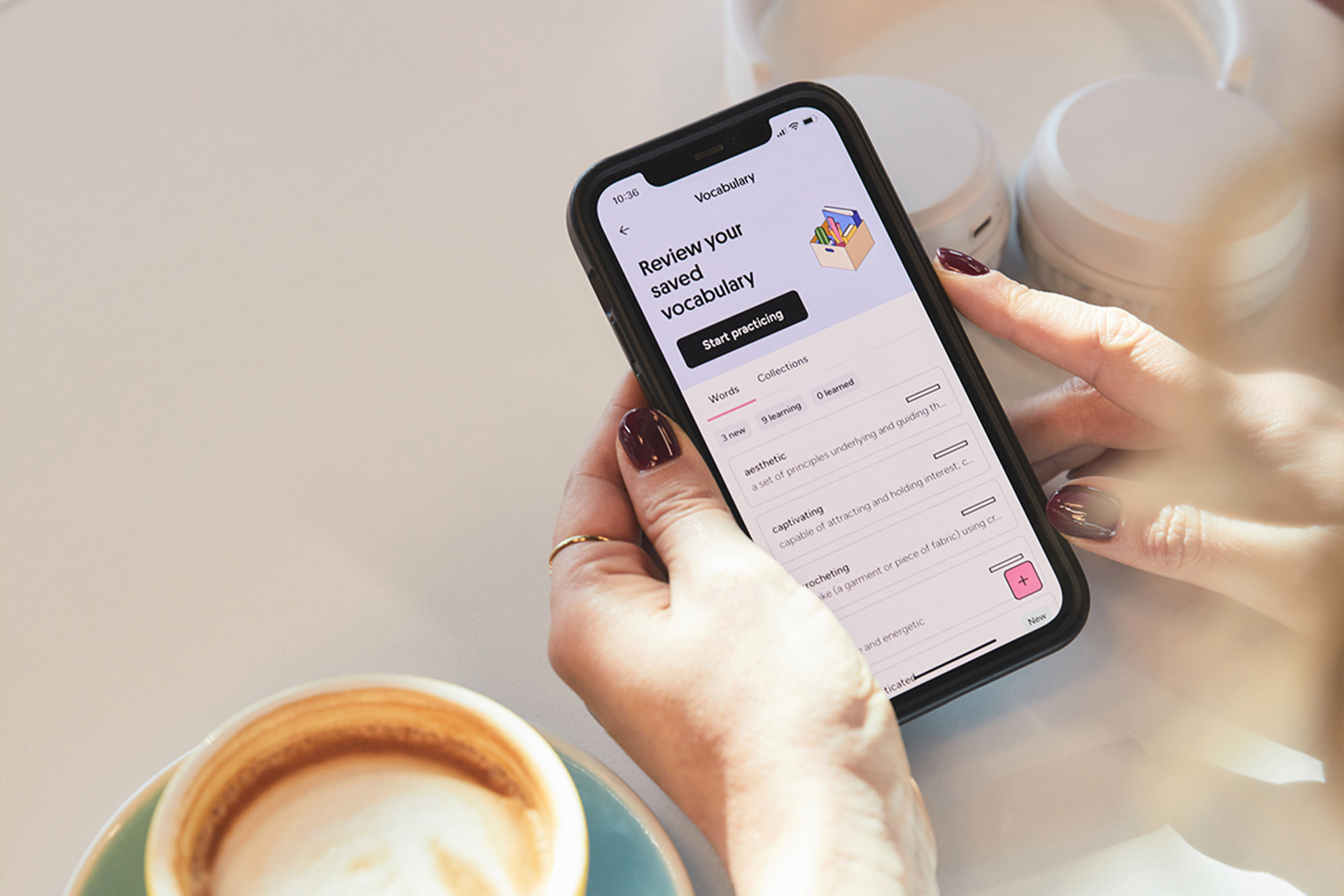
The app includes a progress dashboard showing total lessons, speaking time, vocabulary learned, and a streak counter for consecutive weeks with at least one lesson. Tutors can assign homework — writing exercises, audio recordings, or vocabulary sets — which appear in a dedicated Homework tab. The vocabulary tool uses spaced repetition: you review words at increasing intervals, marking each as "Easy," "Good," or "Again." Words marked "Again" return sooner. You can also create custom vocabulary lists from lesson chat history.
Preply's English level test is accessible in the app. It takes about 20 minutes and assesses reading, listening, grammar, and vocabulary. The result maps to CEFR levels (A1–C2). You can retake it monthly to track improvement. The test is free for all users. Some tutors require a recent test result before the first lesson to tailor their approach. The app also shows a "Learning Plan" if your tutor creates one — a roadmap with milestones and recommended lesson frequency.
Preply App for Tutors: Teaching on Mobile
Tutors get a separate dashboard within the same app. Switch roles via the profile menu. The tutor view shows upcoming lessons, pending booking requests, messages, earnings, and schedule management. You can set weekly availability blocks, add time-off exceptions, and adjust hourly rates. Booking requests appear as push notifications — accept or decline with one tap. The tutor classroom has the same tools as the student side plus a "Lesson Notes" panel visible only to you for private reminders.
Teaching from a phone is doable for conversation lessons but limiting for structured classes. The whiteboard is harder to write on with a finger. Screen sharing from mobile is restricted — you can't share a presentation or document from your phone easily. Most full-time tutors use a laptop or desktop for teaching and the app only for schedule checks and messaging between classes. Part-time tutors or those traveling find the mobile classroom adequate for maintaining their schedule.
The app shows earnings in your local currency with a breakdown by lesson, package, and referral bonuses. Withdrawal requests can be initiated in the app but redirect to the web payment portal for bank details and verification. Payout history shows status: pending, processing, completed. The tutor profile editor lets you update your bio, video, certifications, and specialties. Changes go live after Preply's moderation review, usually within 24 hours.
iOS vs Android: Platform Differences
Both apps share the same core feature set, but platform quirks create differences. On iOS, picture-in-picture video works natively — you can minimize the lesson window to check a dictionary or notes app while keeping the tutor visible. Android supports this too, but behavior varies by manufacturer and OS version. iOS restricts screen sharing to apps that implement ReplayKit; most tutors share from desktop instead. Android allows full screen sharing, useful if you want to show a mobile app or document from your phone.
Push notifications are more reliable on iOS due to Apple's tighter control over background processes. Android users sometimes report delayed lesson reminders or message alerts, especially with battery optimization enabled. The fix is to exempt Preply from battery saver settings. Both apps support biometric login (Face ID, Touch ID, fingerprint). Dark mode follows system settings on both platforms. The iOS app tends to get updates slightly earlier — usually by a few days.
Scroll horizontally to see all columns
| Feature | iOS | Android |
|---|---|---|
| Picture-in-picture video | Native support | Supported (varies by device) |
| Screen sharing | Limited (ReplayKit apps) | Full screen sharing |
| Push notification reliability | High | Medium (battery settings affect) |
| Biometric login | Face ID / Touch ID | Fingerprint / Face unlock |
| Widget support | Lesson countdown widget | No widget currently |
| Offline vocabulary | Yes | Yes |
| Update frequency | Slightly faster | Few days behind |
Mobile App vs Desktop Experience
The desktop app (Windows/macOS) and web version remain the most complete Preply experience. Advanced tutor settings — commission breakdown, tax documents, referral program details — are web-only. Students get full access to the community forum, blog articles, and language resources on desktop. The mobile app covers the daily workflow: book, attend, review. If you only use Preply on your phone, you'll miss some depth but not core functionality.
One practical difference: payment management. Updating credit cards, viewing invoice history, and managing subscriptions work in the app but the interface is condensed. The web version shows more detail per transaction. Refund requests and dispute resolution require the web help center. If you handle billing infrequently, the app is fine. If you're a tutor reconciling monthly earnings, use desktop.
The app handles 90% of what students do daily. The other 10% — billing disputes, tax docs, deep tutor analytics — still needs a browser.
Subscription Management in the App
Preply uses a subscription model for students: you buy a package of lessons (4, 8, 12, or 20 per month) that auto-renews. The app shows your current plan, lessons used this cycle, lessons remaining, and renewal date. You can upgrade, downgrade, or cancel from the Subscription screen. Cancellation stops auto-renewal but unused lessons expire at the end of the billing period — they don't roll over. The app sends a push notification 3 days before renewal.
Payment methods stored in the app sync with the web version. You can add multiple cards and set a default. Apple Pay and Google Pay work for one-tap purchases. Promo codes apply at checkout — enter them before confirming a new subscription. The app doesn't show historical price changes or loyalty discounts; those appear in email or the web account page. If you pause lessons, you can cancel and resubscribe later without losing your tutor relationships or lesson history.
Tutors see a different subscription view: their students' packages, upcoming renewals, and commission per lesson. The app alerts tutors when a student's package is about to renew or expire. This helps with retention — you can message students before they decide not to continue. Commission rates (18–33% depending on tenure) are visible in the tutor earnings section but the detailed tier breakdown is web-only.
User Reviews and Common Feedback
App Store and Play Store ratings hover around 4.7 and 4.6 stars respectively, with hundreds of thousands of reviews. Positive feedback highlights tutor quality, ease of booking, and the convenience of mobile lessons. Negative reviews cluster around three issues: occasional video call instability, notification bugs on Android, and subscription cancellation confusion. Some users report the app logging them out randomly — usually fixed by updating to the latest version.
Tutor reviews mention the mobile classroom's limitations for professional teaching. Many say they use the app only for admin. Students who take lessons exclusively on mobile report satisfaction for conversation practice but frustration with document-heavy subjects. A recurring request: better offline mode for vocabulary review without internet. Preply's support team responds to reviews in both stores, often directing users to the help center or promising fixes in upcoming releases.
Troubleshooting and Support Access
The app includes a Help Center section with searchable articles on booking, payments, technical issues, and tutor policies. Live chat support is available for students on paid plans — access it via the profile menu. Tutors get priority email support. The app also has a "Report a Problem" button in the lesson classroom for real-time technical issues (audio, video, connection). Preply's support team can view session logs to diagnose problems.
If the app crashes or behaves oddly, standard fixes apply: force close and reopen, check for updates, reinstall. Clearing cache (Android) or offloading the app (iOS) preserves login data while fixing corrupted temporary files. Lesson recordings — available for students who enable them — download to the device and can be large. Manage storage in Settings > Storage if your phone fills up. The app doesn't auto-delete old recordings.
For account-level issues — banned accounts, payment disputes, data deletion requests — you need the web help center or email support. The app links to these but doesn't handle them natively. Preply's refund policy allows refunds for unused lessons within 7 days of purchase if no lessons were taken. After that, it's case by case. The app shows the policy summary but the full terms live on the website.
Privacy, Permissions, and Data Usage
The app requests camera, microphone, notifications, and storage permissions. Camera and microphone are required for lessons. Notifications are needed for lesson reminders and messages. Storage access lets you download vocabulary lists and lesson recordings for offline use. Location permission is not requested. Preply's privacy policy covers data collection: usage analytics, device info, lesson metadata, and message content (for moderation and quality). You can request data export or deletion from the web account settings.
Video lessons are encrypted in transit. Recordings are stored on Preply's servers and accessible only to the student (and tutor, if both agree). The app doesn't record locally unless you use your OS screen recorder. Preply complies with GDPR for European users. The privacy policy is linked in the app's settings and during onboarding. No third-party advertising SDKs are embedded — Preply's revenue comes from lesson commissions, not data sales.
Preply Mobile App for Business and Teams
Preply Business accounts include mobile access for employees and admins. The app shows a "Business" tab when logged in with a corporate account. Employees see assigned tutors, learning plans, and progress goals set by their manager. Admins view team utilization, upcoming lessons, and budget consumption. The mobile experience mirrors the student side with added reporting. Companies with distributed teams find the app useful for employees who travel or work remotely.
Single sign-on (SSO) via SAML or OIDC works on mobile — employees log in with their corporate credentials. Provisioning and deprovisioning sync with the company's identity provider. The app doesn't support bulk admin actions (assigning tutors to 50 people at once); those stay on the web admin panel. But day-to-day learning — booking, attending, reviewing — works fully on mobile for business users.
Frequently Asked Questions
Is the Preply mobile app free to download?
Yes, the app is free on both the Apple App Store and Google Play Store. You only pay for lessons or subscriptions.
Can I take Preply lessons on my phone without Wi-Fi?
You can use mobile data (4G/5G) for lessons, but a stable Wi-Fi connection is recommended for video quality. Vocabulary review works offline if you've downloaded lists beforehand.
Does the Preply app work on tablets?
Yes, both iPad and Android tablets run the app. Tablets provide a better lesson experience than phones due to larger screens for whiteboard and document viewing.
Can tutors teach full lessons from the mobile app?
Technically yes, but most tutors prefer desktop for the full whiteboard, screen sharing, and document tools. The mobile classroom is adequate for conversation practice.
How do I cancel my Preply subscription in the app?
Go to Profile > Subscription > Manage Plan > Cancel Subscription. Cancellation stops auto-renewal; unused lessons expire at the end of the current billing period.
Are lesson recordings available in the mobile app?
Yes, if you enable recording in settings. Recordings save to the app and can be downloaded for offline viewing. They count against your device storage.
Does the Preply app support Apple Watch or Wear OS?
No, there is no smartwatch companion app. Lesson reminders appear as phone notifications only.
Final Assessment of Preply Mobile App
The Preply mobile app delivers on its core promise: book a tutor, take a lesson, review vocabulary — all from your pocket. For students who value flexibility, it's a solid companion. The tutor search, booking flow, and video classroom work reliably on modern phones. Vocabulary review with spaced repetition is genuinely useful for daily practice. Push notifications keep you on schedule. If your learning style is conversation-focused, the phone screen is enough.
The gaps appear when you need depth. Document-heavy lessons, complex whiteboard work, detailed billing, tutor analytics, and admin tasks all push you toward the desktop or web version. Android users should check battery settings to avoid missed notifications. Tutors treating Preply as a primary income source will teach from a computer and use the app for schedule management only. For casual learners and travelers, the app may be the only Preply interface you ever need. For serious students and professionals, it's a convenient extension of the full platform.